Posts

Hyperlinks in iOS App by detecting Links, Phone Number, Address and CalendarEvent in UITextView

Image
In many scenarios we have to detect Links(URLs) and Phone Numbers from given NSString and make it similar to hyperlink in HTML. Suppose you have a string with multiple url's and you want to make it clickable, so as to be able to open it in Safari browser. In below code i have taken a string which consists of two url's and i want to make it clickable. So i take a UITextView "txtViewClickableHyperLink" and assigned the NSString "strText" to it. Now i have used a magic line to setDataDetector of UITextView, this line has power to recognise my url. By changing type of DataDetector we can recognise: UIDataDetectorTypeLink                  - URL (Link) UIDataDetectorTypePhoneNumber   - Phone Number UIDataDetectorTypeAddress             - Address UIDataDetectorTypeCalendarEvent   - Calendar Event UIDataDetectorTypeAll                      - De...

UIPanGestureRecognizer to create Screen similar to Notification Center

Image
In my application i wanted a Screen similar to the Notification Center of the iPhone. Where user can navigate through 3 screens using swipe gesture and also by selecting the UISegmentedControl index. So i have figured out below code.   -(void)viewDidLoad { [super viewDidLoad];   // I have added a ScrollView on Xib file of width 960px here. // added content(UIControls) required on first screen at 0px to 320px. // added content(UIControls) required on second screen at 320px to 640px. // added content(UIControls) required on third screen at 640px to 960px.   // I have added a UISegmentedControl on Xib file and set an action: - (IBAction)changeTab:(id)sender   // Add PangestureRecognizer to view    UIPanGestureRecognizer *panRecognizer = [[UIPanGestureRecognizer alloc] initWithTarget:self action:@selector(swipeThroughTabs:)];    [panRecognizer setMinimumNumberOfTouches:1];    [panRecognizer setMaximumNumberOfTouches:1];    [panReco...

Placeholder text in UITextView iOS

Image
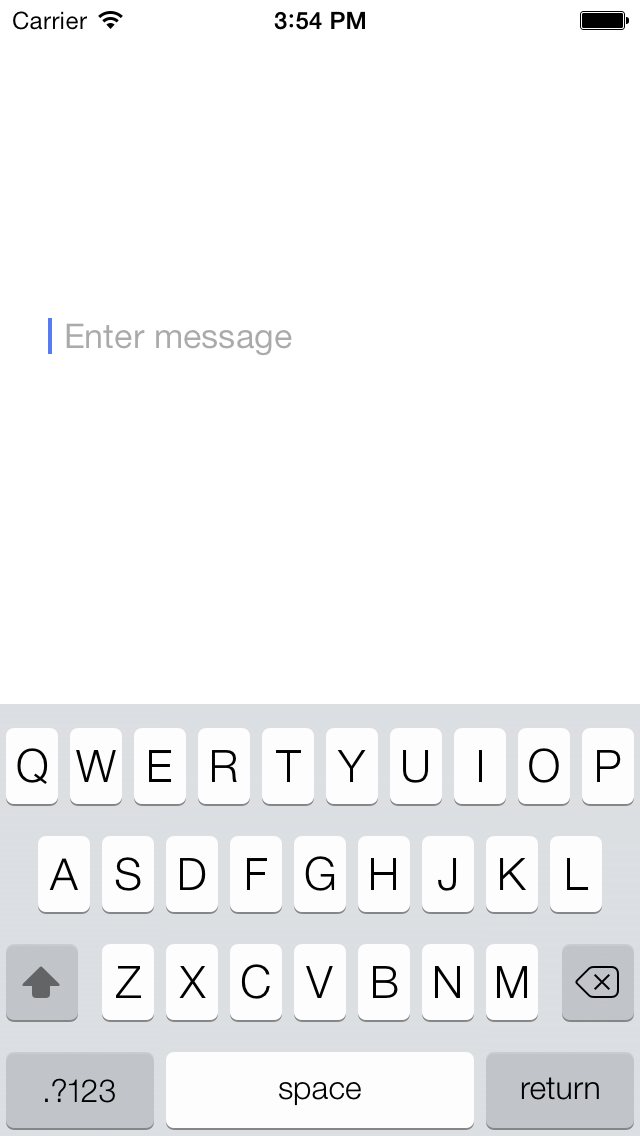
As we all know UITextView does not have a Placeholder unlike a UITextField. So it is really a painful job to have a placeholder text in a UITextView. I got stuck on the same issue and did some work around. This trick will make you think that you are actually having a placeholder text inside a UITextView. So here we go: 1. Place a UILabel on nib (xib) file at the position where you want UITextView. 2. Now set text what you want on the placeholder and change it text color to lightGraycolor. 3. Take a UITextView and place it above the UILabel and set its background color to clearcolor. 4. It will appear as a placeholder inside UITextView. 5. Set delegates of UITextView as follows: In Header file: #import <UIKit/UIKit.h> @interface LoginViewController : UIViewController < UITextViewDelegate > @end In Implementation file: - ( void )viewDidLoad {     [ super viewDidLoad ];     [myTextView setDelegate:self]; } 6. Take ...

Unique Identifier UUID - iOS

UDID is a hash value composed from various hardware identifiers such as the device serial number. It is unique for each device.  The UDID is independent of the device name, SIM card. It is really easy to get it from the device programmatically: NSString *uuid =  [[UIDevice currentDevice] uniqueIdentifier]; But UDID is no longer available onwards iOS 6 due to security / privacy reasons. UDID is deprecated by Apple; developers can not make use of it in any iOS application. So what now?  How can we identify the device? I found many solutions on searching over internet like  identifierForVendor or  advertisingIdentifier or generate our own UUID (store & persist it on your own). Many examples show how to generate UUID and store it in NSUserDefault: -( NSString *)generateUUID {     NSString *CFUUID = nil ;     if ([[ NSUserDefaults standardUserDefaults ] valueForKey : @"UUID" ] == nil ) {   ...

Upload Multiple Images/Photos to Server Using MulipartFormatData via AFNetworking

Below is the code snippet which would help in uploading multiple Images along with Text to Server: -(void)uploadMultipleImagesWithTextMessageUsingAFNetworkingMultipartFormat:(id)sender {     // Upload multiple images to server using multipartformatdata (AFNetworking)         NSString *stringMessage = @"I am uploading multiple images to server";           AFHTTPClient *client = [[AFHTTPClient alloc] initWithBaseURL: [NSURL URLWithString:BASEURL]]; // replace BASEURL     client.parameterEncoding = AFJSONParameterEncoding;     NSMutableURLRequest *request = [client multipartFormRequestWithMethod:@"POST" path:@"/PostMultImagesWithTextAPI" parameters:nil constructingBodyWithBlock: ^(id <AFMultipartFormData>formData) {                 [formData appendPartWithFormData:[[[NSUserDefaults standardUserDefaults] objectForKey:KServerAccessToken] dataUsingEncoding:NSU...

Trim White Spaces from NSString

Once i was coding and got stuck over removing spaces from NSString. To trim preceding, succeeding & white spaces in between  a NSString use below snippet:     NSString *whitespaceString = @"      This   is  a        string   with       white      spaces         " ;   NSLog ( @"String before trimming white spaces: %@" , whitespaceString);   whitespaceString = [whitespaceString stringByTrimmingCharactersInSet :[ NSCharacterSet whitespaceCharacterSet ]];   while ([whitespaceString rangeOfString : @" " ]. location != NSNotFound )   whitespaceString = [whitespaceString stringByReplacingOccurrencesOfString : @" " withString : @" " ];   NSLog ( @"String after trimming white spaces: %@" , whitespaceString); OR - A better approach using NSPredicate     NSString *stringWithSpaces = @"     ...

iOS 7 Features

Apple has really turned world upside down with its new and awesome iOS 7. iOS 7 introduces new design, changed icons, upgraded built-in apps and lots of great features. iOS 7 Features: 1. iTunes Radio. 2. More Smart Siri. 3. Anti Theft Feature - Activation Lock. 4. A Better Notification Center. 5. Control Center. 6. Intelligent Multitasking. 7. Audio-only FaceTime Calls. 8. Inclinometer. 9. Photos and Video Improvement. 10. Airdrop. 11. Enhanced Safari. 12. Improved Apple Maps. You can find more details about iOS 7: Link 1 Link 2 Link 3